Reduce TV Input Lag for Console Gaming in 2026
Your TV's picture processing can add huge input lag. Here is how Game Mode, ALLM, and VRR slash latency for PS5 and Xbox gaming.
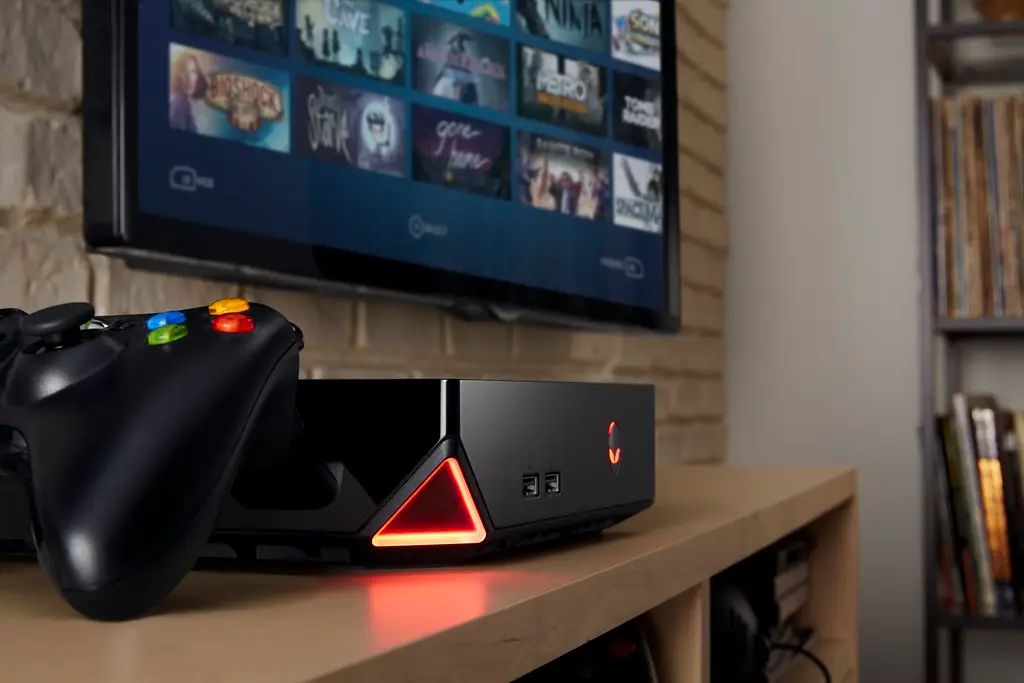
You bought a fast console and a nice 4K TV, but your shots feel a beat late and the controls feel mushy. The culprit is almost always your television, not your reflexes. By default, most TVs run heavy picture processing that looks fine for movies but adds tens of milliseconds of input lag, a disaster for gaming. The fix is a handful of settings that switch the TV into a low-latency state.
Here is how to cut your TV's input lag for console gaming in 2026.
Quick answer
Turn on Game Mode (or let ALLM switch it automatically), which disables the picture processing that adds tens of milliseconds of lag. On a PS5, set VRR, Auto Low Latency Mode, and 120 Hz output all to Automatic under Settings, Screen and Video, Video Output; Xbox Series consoles have the equivalent toggles. Add VRR for smoothness, and plug the console into a true HDMI 2.1 port with a certified Ultra High Speed cable, or you will be silently capped below 4K120. Game Mode alone is the single biggest latency win on any TV.
Key takeaways
- TV picture processing adds input lag; Game Mode disables it to slash that delay.
- ALLM, Auto Low Latency Mode, switches the TV into Game Mode automatically when a console starts a game.
- VRR, Variable Refresh Rate, removes tearing and stutter by syncing the TV to the console's frame rate.
- On PS5, set VRR, ALLM, and 120 Hz output to Automatic in the video settings.
- The best result comes from a fast panel plus all three features working together.
Why your TV adds input lag
Smart TVs apply a stack of image processing: motion smoothing, noise reduction, sharpening, and more. Each step takes time, and that time is input lag, the delay between pressing a button and seeing the result on screen. For watching a film it is invisible. For gaming, it makes everything feel sluggish and can genuinely cost you in fast games.
Game Mode is the master switch that disables most of that processing. Turning it on is the single biggest latency improvement you can make on any TV.
Here is what each feature does so you know which problem it solves:
| Feature | What it targets | Effect | How to enable |
|---|---|---|---|
| Game Mode | Input lag | Disables latency-adding processing | TV picture settings (manual) |
| ALLM | Input lag | Auto-switches Game Mode when a game starts | Console + TV setting |
| VRR | Tearing and stutter | Syncs refresh rate to frame rate | Console + TV setting |
| 120 Hz output | Motion clarity | Enables high-refresh modes | Console video output |
| HDMI 2.1 port + cable | Bandwidth cap | Unlocks 4K120 and VRR | Use the labeled 2.1 input |
Game Mode and ALLM cut latency; VRR and 120 Hz improve how the picture looks. You want all of them working together.

Turn on Game Mode and ALLM
Game Mode lives in your TV's picture settings, though the exact name varies by brand, sometimes appearing as Game Optimizer or a dedicated game picture mode. Switch your TV to it for any gaming input.
Better still is ALLM, Auto Low Latency Mode. ALLM lets the console send a signal to the TV that automatically switches it into low-latency game mode the moment you launch a game, then switches back for video. It means you never have to remember to toggle Game Mode by hand. If your TV and console both support it, enable it and let it work automatically.
Note
ALLM and Game Mode do the same core job, disabling latency-adding picture processing. ALLM just automates the switch. If your TV lacks ALLM, manually selecting Game Mode achieves the same latency reduction; you simply have to remember to turn it on.
Configure your PS5
The PlayStation 5 makes this easy once you know where to look.
- Open Settings, then Screen and Video, then Video Output.
- Set VRR to Automatic to remove tearing and stutter in supported games.
- Set Auto Low Latency Mode (ALLM) to Automatic so the TV switches to game mode on its own.
- Set 120 Hz Output to Automatic to enable smoother high-refresh modes where games support them.
- Save and confirm your TV's HDMI port is a high-bandwidth HDMI 2.1 port if you want 4K120.
Xbox Series consoles offer equivalent settings under the TV and display options, including ALLM and VRR toggles, plus an allowed resolutions menu. The principles are identical: enable Game Mode behavior, VRR, and high-refresh output.
Add VRR for smoothness
VRR, Variable Refresh Rate, is the third piece. While Game Mode and ALLM target input lag, VRR targets smoothness. It synchronizes the TV's refresh rate to the console's actual frame rate, eliminating the screen tearing and judder that appear when frame rate fluctuates. On a VRR-capable TV with a VRR-capable console, it makes variable-frame-rate games look dramatically cleaner. Our guide to enabling 120 Hz and VRR on a PS5 Pro and TV walks through this in more depth, and Xbox owners can follow our Xbox Series X 4K 120fps VRR setup.
Use the right HDMI port and cable
One overlooked detail: not every HDMI port on a TV is equal. Many TVs reserve their full-bandwidth HDMI 2.1 ports for one or two inputs. Plug your console into a designated HDMI 2.1 port, and use a certified Ultra High Speed HDMI cable, or you may be silently capped below 4K120 and VRR no matter what you enable in the menus. If you are still shopping, our rundown of gaming TV features like VRR, 120 Hz, and ALLM explains what to look for on the spec sheet.
What good input lag actually looks like
Numbers help you know whether you have a real problem or are chasing milliseconds you will never feel. Input lag is measured in milliseconds at a given resolution and refresh rate, and the threshold of what feels responsive depends on the game:
- Under 10 ms is excellent and indistinguishable from instant for almost everyone.
- 10 to 20 ms is very good and the range most modern TVs hit in Game Mode at 4K60, often dropping further at 120 Hz.
- 20 to 40 ms is acceptable for slower or single-player games but starts to feel soft in competitive shooters.
- Above 40 ms, which is where many TVs sit with Game Mode off, is the mushy, delayed feeling that sends people down this rabbit hole.
The jump from a TV's default picture mode to Game Mode often cuts lag by 30 ms or more, which is why it is the first and biggest fix. Going from Game Mode at 60 Hz to 120 Hz typically shaves another handful of milliseconds, so high-refresh output is worth enabling even if your games do not always hit 120 fps.
What to do tonight
Knock this out in one sitting:
- Switch your TV into Game Mode (or enable ALLM so it switches itself), then confirm the picture mode name changes when you launch a game.
- On your PS5, set VRR, ALLM, and 120 Hz output all to Automatic in Video Output.
- On Xbox Series, enable the equivalent ALLM, VRR, and resolution settings under TV and display options.
- Move the console's HDMI cable to a port your TV labels as HDMI 2.1, and swap in a certified Ultra High Speed cable.
- Play a fast game and feel the difference; if it still lags, recheck that Game Mode actually engaged and the port is a true 2.1 input.
Frequently asked questions
What is the difference between Game Mode and ALLM?
They achieve the same thing, reducing input lag by disabling picture processing. Game Mode is a manual setting you select; ALLM automatically switches the TV into that low-latency state when a console starts a game, so you do not have to toggle it yourself.
Does VRR reduce input lag?
VRR's main job is removing tearing and stutter by syncing the refresh rate to the frame rate. It improves smoothness rather than directly cutting latency. Game Mode and ALLM are what reduce input lag.
Why does my PS5 not show 4K120 or VRR options?
Usually because the console is plugged into a non-2.1 HDMI port, the cable is not Ultra High Speed rated, or the TV's enhanced HDMI mode for that port is disabled. Check the port, cable, and the TV's input settings.
Will Game Mode make the picture look worse?
It disables some processing like motion smoothing, so movies can look slightly different, but for gaming the trade is entirely worth it. Many modern TVs preserve good picture quality in Game Mode while still cutting latency.
The bottom line
If console gaming feels laggy on your TV, the fix is almost certainly in the settings, not your hands. Turn on Game Mode or ALLM to kill the latency-adding processing, enable VRR for smoothness, and set your PS5 or Xbox to output high-refresh automatically. Plug into a true HDMI 2.1 port with a proper cable, and your controls will suddenly feel crisp and immediate.


