KERNEL_SECURITY_CHECK_FAILURE on Windows 11? How to Diagnose and Fix It
This blue screen points at a failing driver, corrupt system file, or bad RAM. Here's how to find the real cause and stop the crashes.

A blue screen with the stop code KERNEL_SECURITY_CHECK_FAILURE means Windows caught a critical integrity check failing, a piece of data the kernel expected to be valid was not, so it halted the system rather than risk corruption. The phrase sounds like a security breach, but it almost never is. The usual culprits are a buggy or outdated driver, corrupt system files, or failing RAM. The challenge is that all three produce the same stop code, so the work is in narrowing down which one applies to your machine.
Quick answer
KERNEL_SECURITY_CHECK_FAILURE means Windows caught a failed integrity check and halted to avoid corruption; despite the name it is almost never malware. The fix order that catches the most cases: update or roll back drivers (especially if a crash started after an update), repair system files with DISM then SFC, test RAM with Windows Memory Diagnostic, and disable Memory integrity (Core isolation) to rule out a driver conflict. If it persists, read the minidump in BlueScreenView to name the exact .sys file at fault.
Key takeaways
- The most common cause is a faulty or outdated driver improperly accessing memory.
- Corrupt system files and failing RAM produce the identical stop code, so test for both.
- The Memory integrity (Core isolation) feature can conflict with older drivers and trigger this crash.
- A crash that began right after an update points to a driver swap, rolling it back is the fastest fix.
Step 1: Note when the crashes happen
Patterns reveal the cause faster than any tool:
- Right after a Windows or driver update? A driver is almost certainly to blame, jump to Fix 1.
- Only when a specific device is plugged in or one app runs? That device's driver is the suspect.
- Random and getting more frequent? Suspect failing RAM or a degrading drive.
The timing of the crash is your best free diagnostic. Use this to jump straight to the right fix instead of running every step:
| When it crashes | Most likely cause | Go to |
|---|---|---|
| Right after a Windows or driver update | Bad or incompatible driver | Fix 1 (roll back) |
| Only with one device or app | That device's or app's driver | Fix 1, then uninstall the app |
| Randomly, getting worse over time | Failing RAM | Fix 3 (memory test) |
| After enabling Core isolation | Old driver vs Memory integrity | Fix 4 |
| With disk errors or slow boots | Failing drive or corrupt file system | Fix 5 (chkdsk) |
| No clear pattern | Unknown driver | Fix 6 (read the dump) |
Tip
If you can only reach the desktop briefly before it crashes, or cannot boot at all, do everything below from Safe Mode: hold Shift while clicking Restart, then choose Troubleshoot > Advanced options > Startup Settings > Restart and press 5 for Safe Mode with Networking.
Fix 1: Update or roll back drivers
Drivers are the leading cause, so start here.
- Right-click Start > Device Manager.
- Look for any device with a yellow exclamation mark and update it first.
- Right-click the device, choose Update driver > Search automatically.
- If the crashes started after an update, instead open the device's Properties > Driver tab and click Roll Back Driver.
For graphics drivers specifically, a clean reinstall beats an in-place update. This is the same approach that resolves the display driver TDR crashes, both stem from a graphics driver gone bad.
Fix 2: Repair corrupt system files
If a protected system file is damaged, the kernel treats it as an integrity violation. Run these from an elevated Command Prompt.
DISM /Online /Cleanup-Image /RestoreHealth
sfc /scannow
Run DISM first, it repairs the component store that SFC uses as its source. Reboot after both finish and watch for recurrence.
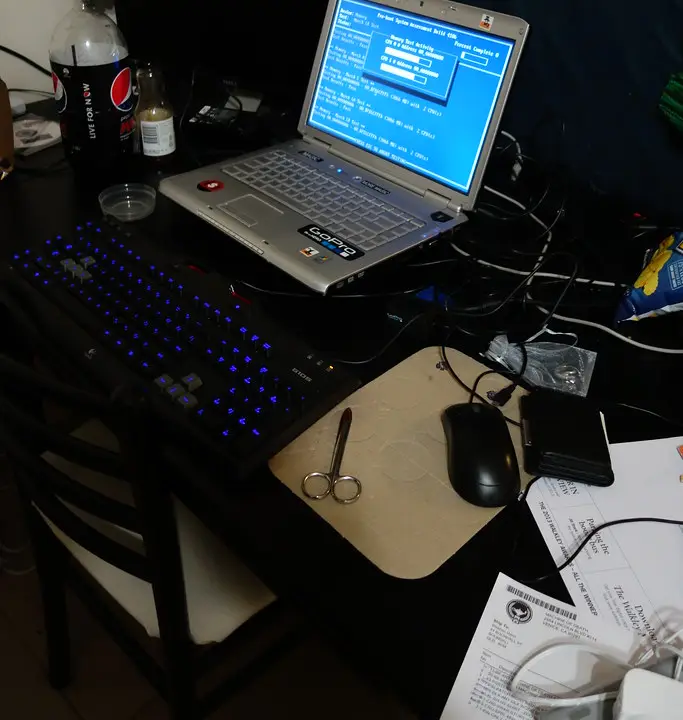
Fix 3: Test your RAM
Faulty or loose memory is a frequent, often-overlooked cause.
- Press
Win + S, type Windows Memory Diagnostic, and run it as administrator. - Choose Restart now and check for problems.
- Let the test run through both passes, it takes several minutes.
- After reboot, check the results in Event Viewer under Windows Logs > System (filter for MemoryDiagnostics-Results).
If errors appear, reseat the RAM sticks firmly in their slots. If you have more than one stick, test one at a time to isolate the bad module.

Fix 4: Disable Memory integrity (Core isolation)
On some machines, the Memory integrity feature conflicts with an older driver and forces this exact crash.
- Open Settings > Privacy & security > Windows Security.
- Click Device security, then Core isolation details.
- Toggle Memory integrity off.
- Restart and test.
Warning
Memory integrity is a real security protection. If turning it off stops the crashes, the proper long-term fix is to update the incompatible driver so you can turn the feature back on, not to leave it disabled permanently.
Fix 5: Check the disk and pending file system errors
A failing drive or corrupt file system can also trip the kernel's checks.
chkdsk C: /f /r
You will be prompted to schedule the scan on the next reboot, type Y and restart. The /r flag locates bad sectors and recovers readable data, which can take a while on large drives.
Fix 6: Read the dump to find the exact driver
If the crashes continue, the memory dump names the file that triggered them.
- Confirm dumps are being written: Settings > System > About > Advanced system settings > Startup and Recovery > Settings, and ensure Automatic memory dump is selected.
- After a crash, open the .dmp file in C:\Windows\Minidump with a free tool like BlueScreenView or WhoCrashed.
- The flagged module, often a
.sysfile, points straight at the offending driver. Update or remove the software that owns it.
What to do right now
If you are crashing repeatedly, do this in order and reboot between steps:
- Open Device Manager and update or roll back any driver with a yellow exclamation mark.
- If the crashes began after an update, roll back the most recently changed driver first.
- Run
DISM /Online /Cleanup-Image /RestoreHealththensfc /scannowfrom an admin prompt. - Run Windows Memory Diagnostic and check the result in Event Viewer.
- Turn off Memory integrity under Core isolation to test for a driver conflict.
- If it continues, open the newest .dmp in C:\Windows\Minidump with BlueScreenView and act on the named .sys file.
Frequently asked questions
Does this stop code mean my PC has a virus?
Almost never. Despite the word "security," the code refers to an internal kernel integrity check, not a malware detection. The cause is overwhelmingly a driver, a corrupt system file, or bad memory. A malware scan is still worth running, but it is rarely the answer.
Why did the crashes start right after an update?
Updates frequently swap drivers. If a newly installed driver is buggy or incompatible with your hardware, it can fail the kernel's checks and trigger this blue screen. Rolling that driver back (Fix 1) is usually the quickest resolution.
Is it safe to leave Memory integrity off?
Only as a temporary diagnostic step. Memory integrity is a genuine protection against driver-based attacks. If disabling it stops the crashes, update the incompatible driver and re-enable the feature rather than running without it indefinitely.
How do I find exactly which driver is at fault?
Open the minidump file from C:\Windows\Minidump in BlueScreenView or WhoCrashed. These tools highlight the module that triggered the crash, usually a .sys file, so you know precisely which driver or piece of software to update or remove.
Quick recap
Start by noting when the crashes happen, then update or roll back drivers, repair system files with DISM and SFC, and test your RAM. If it continues, disable Memory integrity to check for a driver conflict, run a disk check, and read the minidump to name the exact culprit. The fix is almost always a single bad driver, corrupt file, or failing memory module.
Sources & further reading
- windowsreport.com/kernel-security-check-failure-windows-11/
- allthings.how/how-to-fix-kernel-security-check-failure-bsod-in-windows-11/
- tomshardware.com/software/windows/how-i-survived-kernel-security-check-failure-bsod
- windowsforum.com/threads/how-to-fix-kernel_security_check_failure-bsod-in-windows-10-11-causes-solutions.370684/
- manageengine.com/products/eventlog/kb/kernel-security-check-failure-bsod.html