Fix Green Screen on Video Playback in Windows 11
Videos play as a green screen in Chrome, Edge, or a player on Windows 11? Fix it by toggling hardware acceleration and updating your GPU driver.
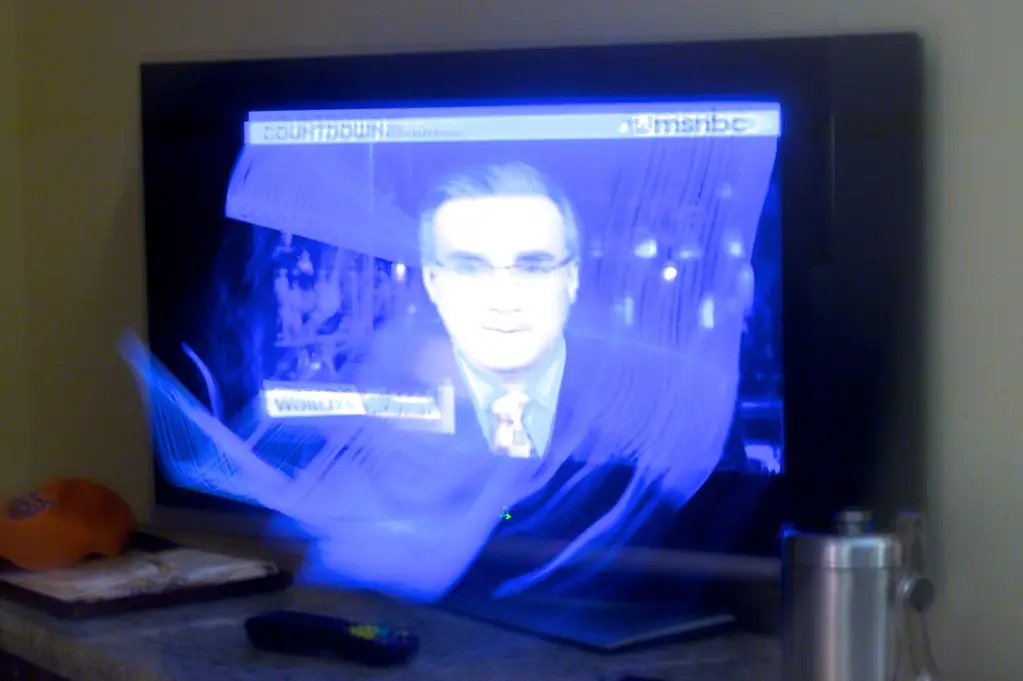
A green screen with perfectly normal audio is one of the most misdiagnosed problems on Windows 11. People blame the file, the website, or the whole PC, when the culprit is almost always one thing: hardware-accelerated video decoding hitting a driver bug. The video is fine; the GPU path that draws it is not, and you can fix it in about two minutes.
When videos play as a solid green screen, with audio still working, while everything else on Windows 11 looks fine, the problem is how video is being decoded and rendered, not the video file itself. Browsers like Chrome and Edge, and media players, offload decoding to your graphics card for efficiency. When that GPU path hits a bug or a driver mismatch, the picture turns green even though the sound plays normally.
Quick answer
A green screen with working audio almost always means hardware-accelerated video decoding is hitting a GPU driver bug. The fastest fix: in Chrome or Edge, open Settings > System and turn off Use graphics acceleration when available, then restart the browser. If that clears it, update your graphics driver from NVIDIA, AMD, or Intel and you can usually turn acceleration back on. If only one specific video is green, that file is corrupted, which is a separate problem.
Key takeaways
- Hardware acceleration in the browser is the most common cause; toggling it fixes most cases.
- An outdated or mismatched GPU driver is the next likely culprit.
- The fault usually affects all videos in one app, which points to settings, not the file.
- A specific corrupted file shows green only on that one video, which is a separate issue.
- Codec flags in Chrome can be adjusted if a full toggle is too blunt.
Match the symptom to the fix
Before you start toggling settings, the pattern of when the green screen appears tells you exactly where to look:
| Symptom | Likely cause | Fix |
|---|---|---|
| All videos green in one browser, audio fine | Hardware acceleration bug | Toggle browser acceleration off |
| Green across every app and player | Outdated/mismatched GPU driver | Update the GPU driver |
| Only one specific video is green | Corrupted file or odd codec | Re-download or play in VLC |
| Green only on a streaming app (Netflix etc.) | App-level GPU decoding | Toggle the app's acceleration |
| Green plus flicker or crashes | Unstable driver overall | Clean-reinstall the GPU driver |
Toggle hardware acceleration in your browser
This is the single most effective fix for green-screen video in a browser.
- In Chrome or Edge, open Settings, then System.
- Turn Use graphics acceleration when available off.
- Restart the browser and test a video.
- If it works, leave it off, or turn it back on after updating your GPU driver.
In Firefox, open Settings, scroll to Performance, uncheck Use recommended performance settings, then uncheck Use hardware acceleration when available, and restart.
Tip
If turning acceleration off fixes it, the real cause is your GPU driver. Update the driver, then you can usually turn acceleration back on for smoother, lower-power playback.
Update your graphics driver
A stale GPU driver is the underlying cause behind many green-screen problems.
- Press Windows + X and choose Device Manager.
- Expand Display adapters.
- Right-click your GPU and choose Update driver, then Search automatically.
- For best results, download the latest driver directly from NVIDIA, AMD, or Intel.
- Restart the PC.

If you have an NVIDIA card and also see screen flicker or crashes, the driver may be unstable in other ways too, see the display driver stopped responding error. On AMD, green screens can accompany the timeouts covered in AMD driver timeout crashes.
Adjust codec flags in Chrome
If you want to keep hardware acceleration on, you can fine-tune which codecs use it. In Chrome's address bar, type chrome://flags, search for video decode and VP9 options, and experiment with enabling or disabling hardware-accelerated video decode. Toggling that specific flag often clears the green screen while keeping acceleration for the rest of the browser.
Rule out a corrupted file
If only one specific video turns green while every other video plays fine, the issue is that file, not your system. Try playing it in a different player such as VLC, or redownload it. A single corrupted download is a separate problem from a system-wide green screen, and no driver change will fix a damaged file.
What to do right now
Work through these in order and stop when the green screen clears:
- In Chrome or Edge, open Settings > System and turn graphics acceleration off, then restart the browser.
- If that fixes it, update your GPU driver from NVIDIA, AMD, or Intel directly, not just Windows Update.
- After updating, turn acceleration back on for smoother, lower-power playback.
- If green persists everywhere, do a clean driver reinstall (use the vendor's clean-install option).
- If only one file is green, re-download it or open it in VLC to confirm the file is the problem.
Frequently asked questions
Why do videos play green but the audio is fine?
Because audio and video are decoded separately. The audio path is working, but the video decode and render path, usually handled by the GPU, hit a bug. That is why disabling hardware acceleration, which moves video decoding off the GPU, almost always restores the picture.
Should I leave hardware acceleration off permanently?
You can, but it is not ideal. Acceleration makes video playback smoother and uses less battery and CPU. The better path is to update your graphics driver, which usually fixes the root cause, then turn acceleration back on. Leave it off only if updated drivers still produce the green screen.
Only one video is green. Is that the same problem?
No. If a single video shows green while all others play normally, that file is corrupted or uses a codec your system handles poorly. Test it in VLC or redownload it. A system-wide green screen across every video is the acceleration and driver problem this guide solves.
Does this affect streaming apps too?
It can. The Netflix or other streaming app, and browser-based streaming, all rely on GPU video decoding. The same fixes apply: toggle the app's hardware acceleration if it has the option, and keep your graphics driver updated. The cause is identical even though the app differs.