Fix 4K 120Hz No Signal on an HDMI 2.1 TV
PS5 or Xbox showing no signal, black screen, or flicker at 4K 120Hz? Here are the cable, console, and TV fixes for HDMI 2.1 signal drops.
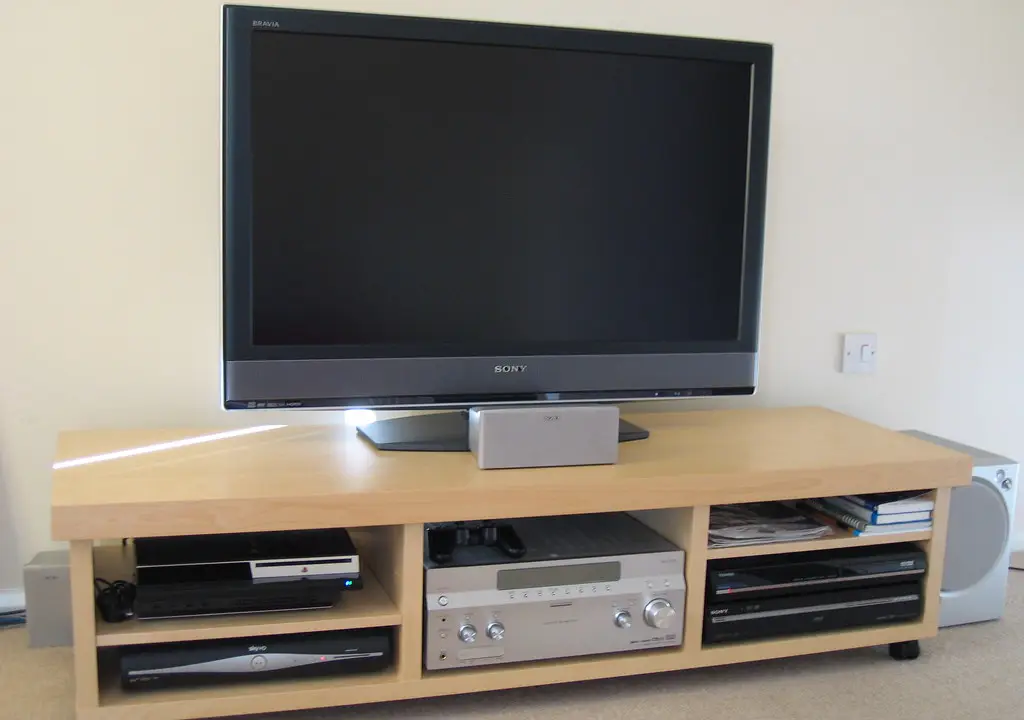
Pushing 4K at 120Hz over HDMI 2.1 is the most demanding thing a modern console asks of your TV, and it is exactly where things break. The screen goes black, flickers, sparkles, or drops to "no signal" mid-game, then snaps back. It looks like a failing console or TV, but the real culprit is almost always the cable or a mismatched setting between the console and the display.
4K 120Hz needs a huge amount of bandwidth, and an ordinary HDMI cable simply cannot carry it cleanly. This guide works through the fixes in the order that resolves the most cases first.
Quick answer
In most cases the cable is the culprit: 4K 120Hz needs an Ultra High Speed HDMI cable (HDMI 2.1, 48 Gbps), and an older or unbranded cable drops the signal when bandwidth peaks. Swap to a certified cable, plug into the TV's specific HDMI 2.1 port (not just any input), and update the TV's firmware. If it still flickers, lower the PS5's 4K transfer rate or, on Xbox, separate the 120Hz and VRR settings, since that combination is a known trouble spot.
Key takeaways
- 4K 120Hz needs an Ultra High Speed HDMI cable (HDMI 2.1, 48 Gbps); older cables cause flicker and signal drops.
- Plug the console into the TV's specific HDMI 2.1 port, not just any input.
- On PS5, lower the 4K video transfer rate if flicker persists.
- On Xbox, the 4K 120Hz with VRR combination is a known trouble spot; drop one variable.
- A TV firmware update fixes many HDMI 2.1 handshake bugs.
Why the signal drops
At 4K 120Hz the data rate spikes far beyond what HDMI 2.0-era cables handle. Uncompressed 4K 120Hz with HDR runs around 40 Gbps, which is why the cable must be rated for the full 48 Gbps of HDMI 2.1. When bandwidth peaks, a marginal cable cannot keep up, so you get intermittent black screens, sparkles, or a full signal loss until the data rate eases. Even a slightly sagging cable that does not sit level in the port can break the connection. The fix order below addresses the cable first, then the handshake settings.
Match the symptom to its likely cause to skip straight to the fix that matters:
| Symptom | Likely cause | Fix |
|---|---|---|
| Black screen only at 4K 120Hz, fine at 60Hz | Cable cannot carry 48 Gbps | Certified Ultra High Speed HDMI cable |
| Works on one input, "no signal" on another | Wrong HDMI port (not 2.1) | Use the TV's labeled HDMI 2.1 port |
| Random sparkles or flicker mid-game | Marginal cable or loose seating | New cable, support its weight, reseat |
| Drops only with VRR enabled (Xbox) | 4K 120Hz plus VRR handshake bug | Separate the two; update TV firmware |
| Fails through receiver, fine direct | Receiver's HDMI 2.1 chip is buggy | Connect console straight to the TV |

Fix the cable and connection
-
Use a certified Ultra High Speed HDMI cable. Replace any older or unbranded cable with a certified HDMI 2.1 (48 Gbps) cable. This single change fixes most 4K 120Hz flicker and dropout.
-
Use the right TV port. Not every HDMI input supports 4K 120Hz. Check your TV's manual and plug into the port labeled for HDMI 2.1 or 4K 120Hz.
-
Support the cable's weight. A heavy cable that sags can pull out of level in the port. Use a small cable tie so it enters the port straight and stays seated.
-
Connect the console directly. Bypass AV receivers and soundbars for testing. Many receivers advertise HDMI 2.1 but cannot pass an uncompressed 4K 120Hz signal cleanly.
Fix console settings
-
PS5: lower the transfer rate. Go to Settings, then Screen and Video, then Video Output, and reduce the 4K video transfer rate by a step. This trims bandwidth enough to stop flicker on a marginal link.
-
PS5: test without 120Hz. Temporarily disable 120Hz output. If the picture is stable at 60Hz, the issue is bandwidth at 120Hz, pointing back to the cable or port.
-
Xbox: separate 120Hz and VRR. Microsoft has acknowledged issues at 4K 120Hz with VRR active. Try 4K 60Hz with VRR, 4K 120Hz without VRR, or 1440p 120Hz with VRR to isolate the cause.
-
Update TV firmware. Install any pending TV software update. Manufacturers regularly ship fixes that improve HDMI 2.1 compatibility with new consoles.
Note
If the picture is perfect at 4K 60Hz but breaks at 120Hz, you have a bandwidth problem, and the cable is the most likely cause. Swapping in a certified Ultra High Speed cable is cheaper and faster than replacing anything else.
When a receiver sits in the middle
Routing the console through an AV receiver adds another HDMI 2.1 chip to the chain, and many of those chips are buggy even on recent models. If the console works plugged straight into the TV but fails through the receiver, the receiver is the weak link. For the audio side of that setup, our guides on eARC audio explained and setting up a Dolby Atmos soundbar over eARC cover how to keep sound working while the console feeds the TV directly. For the cable standards themselves, see HDMI 2.2 and Ultra96 cables explained.
A subtler trap is the TV's input mode. Many sets need an "Enhanced" or "HDMI Deep Color / UHD Color" toggle enabled per port before they will accept the full 4K 120Hz signal. On LG it is "HDMI Deep Color," on Samsung "Input Signal Plus," on Sony "Enhanced format," and on TCL/Hisense it is usually labeled "HDMI 2.1 Mode" or "Enhanced." If the port is set to the standard mode, the TV silently caps the bandwidth and you get "no signal" at 120Hz no matter how good your cable is.
What to do right now
Work this list top to bottom and stop as soon as the picture is stable:
- Swap in a certified Ultra High Speed HDMI cable (look for the HDMI Forum hologram/QR sticker). This alone fixes the majority of cases.
- Move the console to the TV's labeled HDMI 2.1 / 4K 120Hz port, since not every input supports it.
- Enable the port's enhanced input mode (Deep Color, Input Signal Plus, Enhanced format) in the TV's HDMI settings.
- Update the TV firmware, which patches many HDMI 2.1 handshake bugs.
- Bypass any receiver or soundbar for testing, connecting console to TV directly.
- On PS5, lower the 4K transfer rate one step; on Xbox, separate 120Hz and VRR to isolate the trouble combo.
Frequently asked questions
Why does my PS5 go black at 4K 120Hz but work at 60Hz?
4K 120Hz needs far more bandwidth than 60Hz. A non-certified cable cannot carry it cleanly, so it drops. Switch to a certified Ultra High Speed HDMI cable.
Does the HDMI port on my TV matter?
Yes. Only specific ports support 4K 120Hz. Check the manual and use the port labeled HDMI 2.1 or 4K 120Hz; others top out at lower rates.
Why does my Xbox flicker only with VRR on?
The combination of 4K 120Hz and VRR is a known trouble spot. Try VRR at 60Hz, or 120Hz without VRR, and update your TV firmware to isolate and fix it.
Should I run my console through an AV receiver?
For testing, no. Connect the console straight to the TV. Some receivers cannot pass clean 4K 120Hz despite claiming HDMI 2.1 support. Reintroduce the receiver only once the TV link is stable.
How long can an HDMI 2.1 cable be before 4K 120Hz fails?
Passive Ultra High Speed cables are most reliable up to about 2 to 3 meters (6 to 10 feet). Beyond that, the full 48 Gbps signal degrades and you start seeing dropouts, so for longer runs use a certified active or fiber-optic (AOC) HDMI 2.1 cable rated for the distance. A cheap long cable is one of the most common hidden causes of intermittent 4K 120Hz failure.
My TV says it supports 4K 120Hz but it still will not work. Why?
Two usual reasons: the specific port is not one of the 4K 120Hz inputs (many TVs only have two), or that port's enhanced input mode is switched off. Confirm both in the manual and the HDMI settings menu. Some 2020 to 2021 sets also cap 120Hz at certain color depths, so dropping from 4:4:4 to 4:2:2 chroma can restore a stable signal.