Enable Stolen Device Protection on iPhone
Stop a thief who knows your passcode from draining accounts by turning on iPhone Stolen Device Protection and its security delay.

A thief who watches you type your passcode and then grabs your iPhone can normally change your Apple Account password, turn off Find My, and drain your saved passwords and payment cards, all within minutes. Stolen Device Protection slams that window shut. When your iPhone is away from familiar places, it demands Face ID or Touch ID with no passcode fallback for sensitive actions, and forces an hour-long delay before the most critical changes. It is free, built in, and takes 30 seconds to enable. Here is how, and why everyone should.
Quick answer
To turn on Stolen Device Protection, open Settings, tap Face ID & Passcode (or Touch ID & Passcode), enter your passcode, tap Stolen Device Protection, and toggle it on. Choose Always for the strictest behavior. You first need two-factor authentication, a passcode, Face or Touch ID, Find My, and Significant Locations all enabled. It defends against a specific threat: a thief who already knows your passcode from watching you type it. Enable it before your phone is ever lost, because it cannot protect a device retroactively.
Key takeaways
- Stolen Device Protection blocks passcode-only access to your most sensitive settings when away from home or work.
- Critical actions like changing your Apple Account password trigger a one-hour security delay plus a second biometric check.
- You need two-factor authentication, Face/Touch ID, a passcode, Find My, and Significant Locations enabled.
- Turn it on before a phone is lost; it cannot protect a device retroactively.
- Choose Away from Familiar Locations or Always for when the protections apply.
What it actually protects against
The threat is specific and surprisingly common: someone shoulder-surfs your passcode in a bar, on a train, or at a concert, then steals the phone moments later. This is not a hypothetical. A wave of these passcode-then-snatch thefts is exactly why Apple built the feature. Without it, the passcode alone is a master key. A thief can open your phone, read your saved passwords in the Passwords app, change your Apple Account password to lock you out of Find My, and start spending from saved cards, all before you have noticed the phone is gone.
With Stolen Device Protection on, two distinct safeguards kick in when you are away from familiar locations:
- Biometric-only actions. Viewing saved passwords, using a stored payment method to set up a new purchase, applying for an Apple Card, or erasing the phone require Face ID or Touch ID and will not accept the passcode as a fallback.
- The one-hour security delay. The highest-risk changes, like altering your Apple Account password, changing your device passcode, turning off Find My, or disabling Stolen Device Protection itself, trigger a one-hour wait followed by a second biometric scan. That hour is your window to mark the device lost and protect your accounts.
Here is how the same actions play out with the feature off versus on:
| Action a thief attempts | Without protection | With protection (away from home) |
|---|---|---|
| View saved passwords | Passcode unlocks them | Face/Touch ID required, no passcode fallback |
| Change Apple Account password | Passcode allows it instantly | 1-hour delay plus second biometric scan |
| Turn off Find My | Passcode allows it | 1-hour delay plus second biometric scan |
| Use a saved card for a new purchase | Passcode allows it | Face/Touch ID required |
| Disable Stolen Device Protection | Passcode allows it | 1-hour delay plus second biometric scan |
Check the prerequisites
Stolen Device Protection only works if several things are already set up. Make sure you have:
- Two-factor authentication on your Apple Account
- A device passcode
- Face ID or Touch ID enrolled
- Find My turned on
- Significant Locations enabled under Location Services, so the phone knows your familiar places
Turn it on
- Open Settings and tap Face ID & Passcode (or Touch ID & Passcode).
- Enter your device passcode.
- Tap Stolen Device Protection.
- Toggle it on.
- Choose when it applies: Away from Familiar Locations or Always for the strictest protection.
Tip
Choose Always if you want the security delay to apply even at home. It is slightly less convenient but closes the gap for a phone stolen from your own house.
Away from Familiar Locations vs Always
The setting offers two modes, and the choice is a small convenience trade-off:
- Away from Familiar Locations (the default) applies the protections only when you are somewhere your phone does not recognize. At home and work, biometric prompts and the delay are suppressed, so day-to-day life is unaffected. This relies on Significant Locations being on so the phone knows where "familiar" is.
- Always applies the protections everywhere, even at home. It is slightly less convenient, but it closes a real gap: a phone stolen from inside your own house, or by someone in your household, is still protected. If you live with people you do not fully trust, or you simply want maximum coverage, choose Always.
What changes day to day
For most people on the default setting, almost nothing changes at familiar locations like home and work. Away from those, viewing saved passwords, using a saved payment method to set up something new, or changing key account settings asks for Face ID or Touch ID specifically. The one-hour delay only fires for the highest-risk changes, so ordinary use, opening apps, taking photos, sending messages, paying with Apple Pay at a store, is completely unaffected. The feature is designed to be invisible until a thief tries something dangerous.
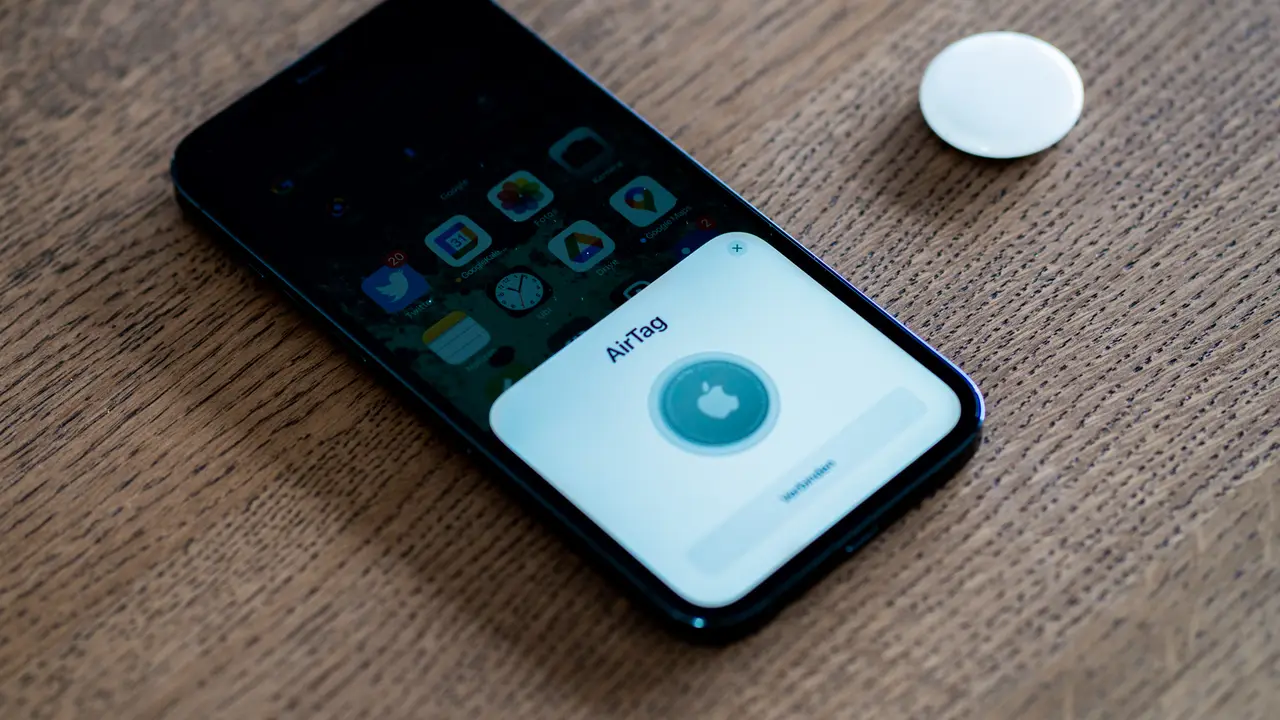
This pairs well with broader account hygiene. Set up passkeys to replace passwords so there is less stored credential to steal in the first place, lock down your number against SIM-swapping with a port-out PIN, and add a Find My-compatible AirTag to your bag or keys so a stolen device is easier to locate.
What to do right now
- Confirm the prerequisites are all on: two-factor authentication, a passcode, Face or Touch ID, Find My, and Significant Locations.
- Enable Stolen Device Protection under Settings, Face ID & Passcode.
- Choose Always if you want protection even at home, not just the default Away from Familiar Locations.
- Set a strong alphanumeric passcode instead of a 6-digit one so it is harder to shoulder-surf in the first place.
- Know how to mark the device lost in Find My on icloud.com or another Apple device, so you can act inside the one-hour window.
Frequently asked questions
Does Stolen Device Protection slow down normal use?
Rarely. At familiar locations it is largely invisible, and even away from home it only adds a biometric check for sensitive actions. The hour-long delay applies only to the most critical changes like resetting your Apple Account password.
What if Face ID fails when I'm out?
For protected actions away from familiar locations there is no passcode fallback by design; that is the point. Make sure Face ID or Touch ID is reliably enrolled. You can still use your phone normally for everything else.
Can a thief just turn it off?
No, not quickly. Turning off Stolen Device Protection is itself a protected action that requires biometrics and the one-hour delay when away from familiar locations, giving you time to lock or erase the phone.
Will it work if I never set up Find My?
No. Find My, two-factor authentication, biometrics, a passcode, and Significant Locations are all prerequisites. The feature relies on knowing your familiar locations and on Find My being active.