AirPlay 2 Multi-Room Audio: Whole-Home Setup Guide
AirPlay 2 turns mismatched speakers into a synced whole-home system from your iPhone. Here is how to group rooms, control volume, and avoid the dropouts.
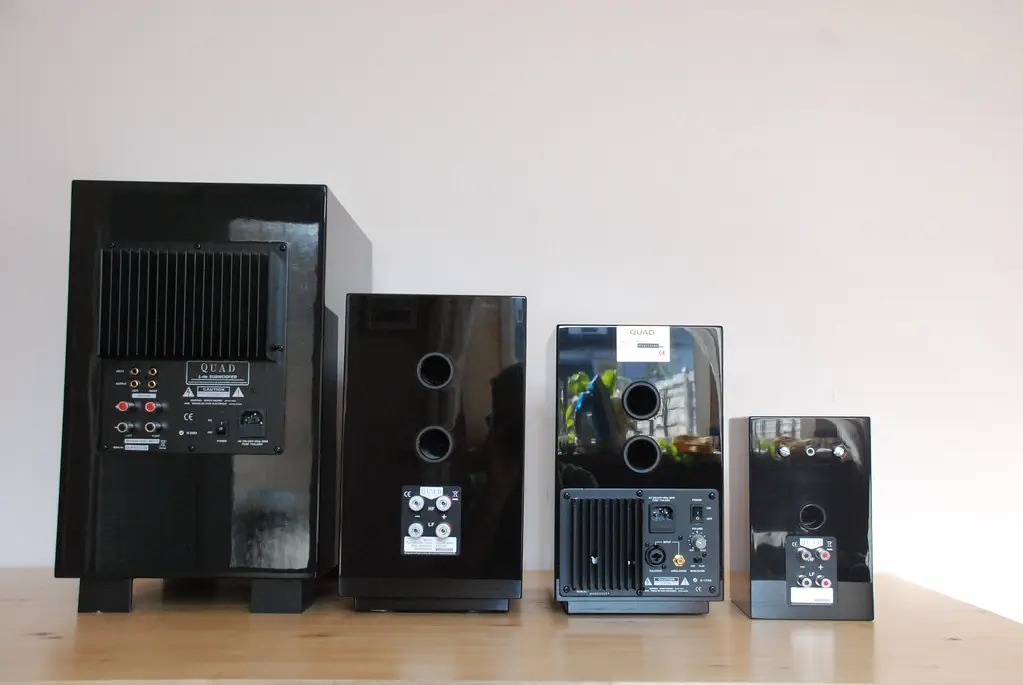
If you have an iPhone and a couple of compatible speakers scattered around the house, you already own a whole-home audio system; you just may not have set it up. AirPlay 2 lets you push the same song to every room in sync, or different music to different zones, all from Control Center. Here is how to build it and keep it from dropping out.
Quick answer
Put every AirPlay 2 speaker (HomePod, Apple TV, or a third-party Sonos, Bose, or Denon model) on the same Wi-Fi network and add the Apple ones to the Home app. Then start playing music, open Control Center, tap the AirPlay icon, and select every room you want. Each speaker gets its own volume slider, and you can split the house into independent zones or play the same song everywhere. Almost every dropout traces back to weak or congested Wi-Fi, not the speakers.
Key takeaways
- AirPlay 2 streams audio over Wi-Fi to multiple speakers at once, keeping them tightly in sync across rooms.
- It works with HomePod, Apple TV, and third-party AirPlay 2 speakers from brands like Sonos, Bose, and many others.
- Control playback from Control Center, the Home app, or Siri, with independent volume per speaker.
- You can play the same audio everywhere or run separate zones with different music.
- Everything must be on the same Wi-Fi network, and a weak network is the usual cause of dropouts.
What AirPlay 2 actually does
AirPlay 2 is Apple's wireless streaming protocol, and the upgrade over the original is multi-room support. Instead of one speaker at a time, it can send audio to many compatible speakers simultaneously and keep their timing aligned over your home network. That synchronisation is the magic part: unlike chaining Bluetooth speakers, AirPlay 2 keeps every room locked together so you do not hear an echo as you walk through the house.
It is not limited to Apple hardware either. Plenty of third-party speakers and AV receivers support AirPlay 2 natively, so a HomePod in the kitchen, a Sonos in the living room, and an AirPlay-capable receiver in the den can all play as one.
The catch worth understanding up front is that AirPlay 2 streams everything from your iPhone over Wi-Fi. Your phone is the source, the speakers are receivers, and the network carries the signal. That is why it can sync mismatched brands so tightly, and also why a marginal network turns a polished system into a stuttering one. Here is how it stacks up against the other ways to fill a house with sound:
| Approach | Mixes brands? | Synced multi-room? | Needs the phone in range? |
|---|---|---|---|
| AirPlay 2 | Yes, any AirPlay 2 device | Yes, tightly | Yes, phone is the source |
| Bluetooth multipoint | Rarely, same brand only | No, audible echo between rooms | Yes, short range |
| Sonos (native) | Sonos gear only | Yes | No, speakers stream themselves |
| Chromecast built-in | Cast-enabled devices | Yes (groups) | No, devices pull the stream |
The trade-off: AirPlay 2 is the most flexible on hardware but the most dependent on a solid network and a phone within Wi-Fi range. Sonos and Chromecast pull their own streams once started, so your phone can leave the house without the music stopping.
Step 1: Get every speaker on the network
The foundation is simple but strict: every speaker has to be on the same Wi-Fi network, and ideally added to the Home app.
- Set up each HomePod, Apple TV, or third-party AirPlay 2 speaker following its own instructions.
- Confirm they are all on the same Wi-Fi network and band as your iPhone.
- Add HomePods and Apple TVs to the Home app and assign each to a room.
- For third-party speakers, make sure AirPlay 2 is enabled in their own app where required.
Note
Mixing a 2.4GHz and 5GHz network with the same name can cause speakers to land on different bands and lose sync. If you hit dropouts, make sure everything is genuinely on the same network, and consider keeping speakers on a stable band.
Step 2: Play to multiple rooms
Once the speakers are set up, grouping them takes seconds.
From your iPhone or iPad:
- Start playing music in any app.
- Open Control Center by swiping down from the top-right corner.
- Tap the AirPlay icon in the audio card.
- Tap each speaker or TV you want included. They all start playing the same audio in sync.
You can also just ask Siri: "Play jazz in the kitchen and living room," or "Play this everywhere." Siri understands rooms and speaker names you set in the Home app.
Step 3: Control volume per room
A whole-home system is only useful if you can keep the bedroom quiet while the party room is loud. AirPlay 2 gives you independent volume for each speaker in the group. In the AirPlay menu, every selected speaker has its own slider, so you can balance the house without un-grouping anything. You can also adjust a single room with Siri by naming it.
Same music everywhere, or zones
AirPlay 2 supports two modes that cover most needs:
- One stream, many rooms: the classic whole-home setup where the same song plays in sync across every grouped speaker.
- Independent zones: different audio in different rooms at the same time. One person can stream a podcast to the office HomePod while music plays in the kitchen, because each can be driven separately.
This flexibility is why AirPlay 2 competes well with proprietary systems without locking you into one brand of speaker.
How it compares to other casting
AirPlay 2 is the natural choice in an Apple household, but it is not the only multi-room option. Chromecast built-in and Matter Casting take different approaches, and Sonos has its own ecosystem layered on top. If you are weighing the casting landscape broadly, our Matter Casting explainer compares the open standard to AirPlay and Chromecast, and our Sonos app refresh guide covers where Sonos fits if you are leaning that direction.
Fixing dropouts and sync problems
Almost every AirPlay 2 complaint traces back to the network. Speakers dropping out, audio stuttering, or rooms falling out of sync usually mean Wi-Fi congestion or weak coverage.
- Make sure all speakers and your iPhone are on the same network.
- Reduce Wi-Fi load during playback, and consider a mesh system for dead zones.
- Keep speaker firmware updated through their apps.
- Restart the router and the speakers if sync degrades over time.
If your home network struggles with streaming generally, our Wi-Fi 7 for streaming guide covers whether an upgrade is worth it for a media-heavy household.
Here is the fastest way to diagnose a dropout by its symptom:
| Symptom | Likely cause | Fix |
|---|---|---|
| One room drifts out of sync | That speaker is on a different Wi-Fi band | Force all speakers onto one band, or split SSIDs by name |
| Audio cuts out room by room | Wi-Fi dead zones or congestion | Add a mesh node, move the router, reduce network load |
| Speaker missing from AirPlay list | Not on the same network | Re-check the speaker's Wi-Fi, re-add it in its app |
| Everything stutters at once | Router overloaded or needs a reboot | Restart router and speakers, update firmware |
What to do right now
To stand up a reliable whole-home setup in one sitting:
- Confirm every speaker and your iPhone are on the same Wi-Fi network and, ideally, the same band.
- Add all HomePods and Apple TVs to the Home app and assign each one to a named room.
- For Sonos, Bose, or Denon speakers, enable AirPlay 2 in their own app.
- Start playing music, open Control Center, tap AirPlay, and select your rooms.
- Set each speaker's volume slider so quiet rooms stay quiet.
- If anything drops out, treat it as a network problem first: check bands, congestion, and coverage before blaming the speaker.
Frequently asked questions
What speakers work with AirPlay 2?
HomePod, HomePod mini, and Apple TV support it natively, along with many third-party speakers and AV receivers from brands like Sonos, Bose, Denon, and others. Check the speaker's spec sheet for an AirPlay 2 badge.
Can I play different music in different rooms with AirPlay 2?
Yes. AirPlay 2 supports independent zones, so you can stream one source to the kitchen and a different source to the office at the same time, each with its own volume control.
Why does my AirPlay 2 audio keep dropping out?
Dropouts are almost always a Wi-Fi problem. Make sure every speaker and your iPhone are on the same network, reduce network congestion, improve coverage with a mesh system if needed, and keep firmware updated.
Do I need a HomePod for AirPlay 2 multi-room?
No. Any combination of AirPlay 2 compatible speakers works, including third-party ones. A HomePod gives the tightest Siri and Home app integration, but it is not required to group rooms.
Can I keep the music playing after my iPhone leaves the house?
Not with a pure AirPlay 2 stream from your phone, because the phone is the source. If you want playback that continues without your device, start it from a HomePod or Apple TV directly (so the speaker streams from the service itself), or use a system like Sonos that pulls its own streams.
Does AirPlay 2 work over a guest or extender network?
It is unreliable on guest networks and many cheap range extenders, because those often isolate clients from each other. AirPlay 2 needs your phone and the speakers to see one another on the same subnet, so a proper mesh system beats a basic extender every time.